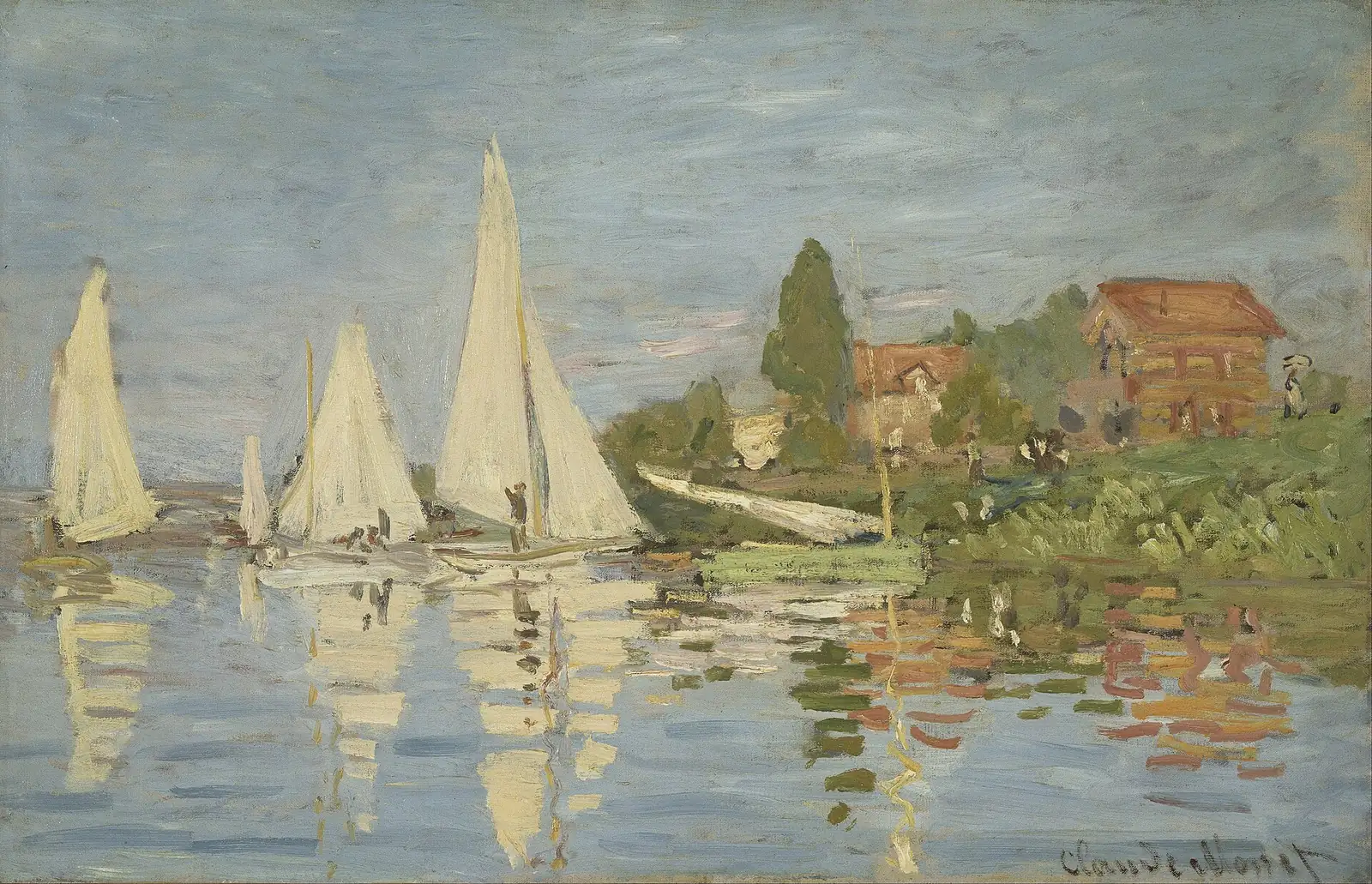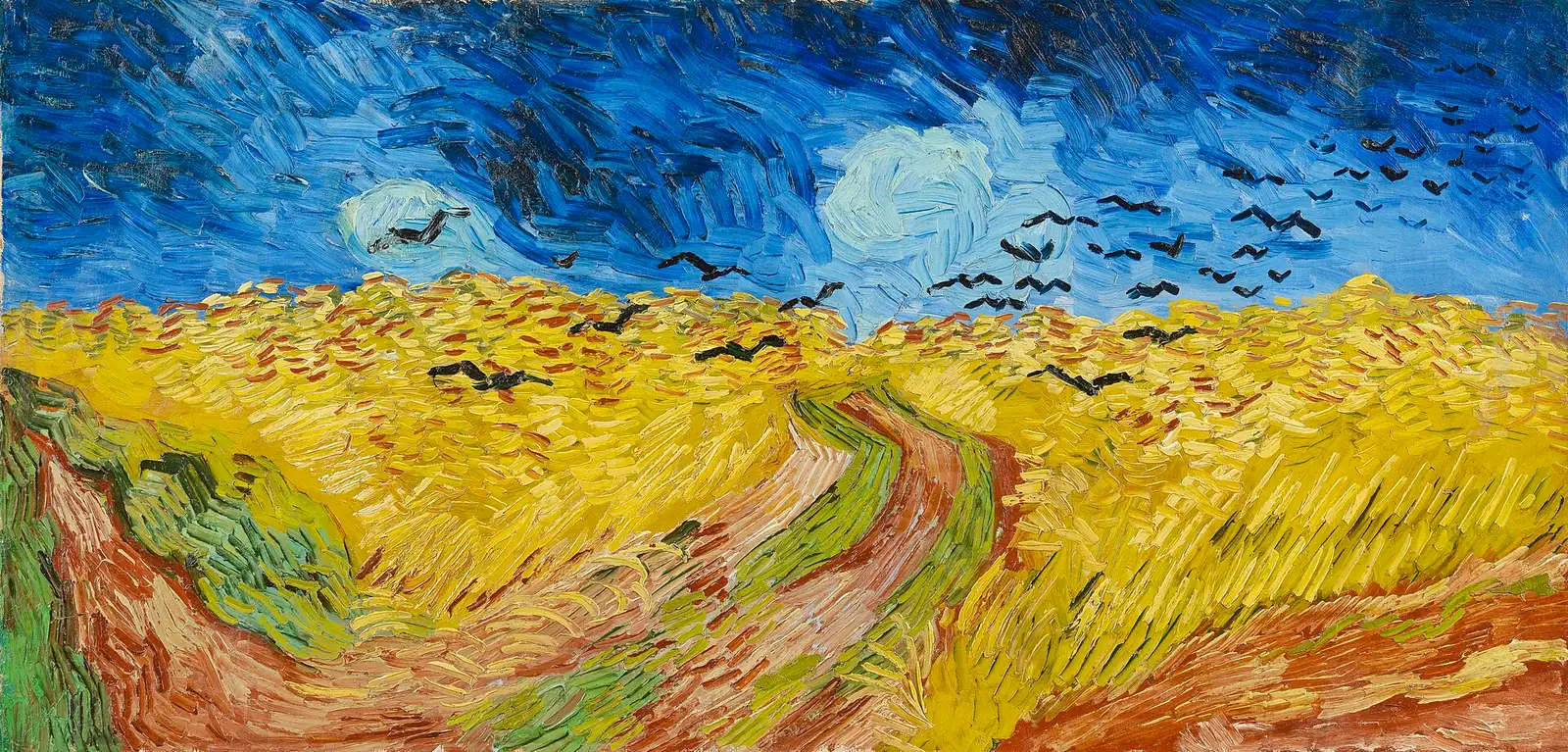

Can You Set a Different Lock Screen Wallpaper on a Mac?
macOS has no separate lock screen wallpaper: it reuses your desktop picture. What FileVault changes, and how to fix a login screen showing the wrong image.
No. macOS has no setting for a separate lock screen wallpaper. When you lock your Mac, the screen behind the password field is your desktop wallpaper, so the only way to change what the lock screen shows is to change the desktop. iPhone lets you dress the Lock Screen and the Home Screen differently; the Mac does not. One screen behaves differently, though: the first one after a restart, which can show an older or default picture when FileVault is on or when the Mac has several accounts. This guide separates what you can control from what you cannot, using Apple’s Mac User Guide for each version and the settings files on a Mac running macOS 27.0.1.
The short answer: there is no lock screen wallpaper setting
Here is what we checked. Apple publishes a version of its Mac User Guide for each release. We read the Wallpaper page (called Desktop on macOS 12 and earlier) and the Lock Screen page for every version from Big Sur 11 to macOS 27. None of them offers a wallpaper just for the lock screen or the login window.
We then looked at the Mac itself. On a Mac running macOS 27.0.1 (Apple silicon, FileVault on), we read the interface text that the Wallpaper and Lock Screen settings pages ship with. The only lock-screen choices are where the clock goes, labeled On Lock Screen and On Screen Saver and Lock Screen, plus the password and login window options. The file where macOS stores wallpaper choices holds exactly two kinds of entry for each display and Space: a desktop picture and a screen saver. There is no third slot for a lock screen.
What you can control on the lock screen is this:
- The background, by changing your desktop wallpaper
- The large clock: where it appears (macOS 14 and later) and its font and weight (macOS 26 and later)
- A short message, with Show message when locked
- The round account image, which is your login picture in Users & Groups
- Whether the login window shows a list of users or asks for a name and password
So "changing the lock screen wallpaper" really means changing the desktop wallpaper. You can put any picture you like on the lock screen. You cannot make it a different picture from the one on your desktop.
The lock screen, the login window, and the startup screen are three different screens
Most "my lock screen ignores my wallpaper" problems come from treating three similar-looking screens as one.
| Screen | When it appears | What fills the background |
|---|---|---|
| Lock screen | You lock the Mac while still logged in: Control-Command-Q, waking from sleep, or ending the screen saver | The logged-in user’s desktop wallpaper |
| Login window | After you log out with Shift-Command-Q, or at startup when FileVault is off | Depending on the setup, a user’s wallpaper or a macOS default |
| FileVault startup screen | Right after you turn on or restart a Mac with FileVault on, before the disk is unlocked | A stored copy of a wallpaper, or a macOS default |
The lock screen is the one you see most. Choose Apple menu > Lock Screen or press Control-Command-Q. You are still logged in, so the background is your own desktop wallpaper. It is the fastest and most reliable way to check a new wallpaper.
The login window appears after you log out, which Shift-Command-Q does. Because no user may be selected yet, whether it shows someone’s wallpaper or a macOS default depends on how the Mac is set up.
The FileVault startup screen is the first thing you see when you turn on a Mac with FileVault enabled. Apple explains that any user whose account has FileVault turned on can start up the Mac and log in with their password. At that moment the disk is still locked, and that is why this screen can disagree with your wallpaper. More on that below.
The Mac also has no Home Screen. The nearest thing to the iPhone Home Screen is the desktop, and that is the picture your lock screen borrows.
What changed by macOS version
The settings have moved around, and the lock screen’s layout changed in Sonoma. What has not changed, in any version we checked, is the absence of a separate lock screen wallpaper.
| macOS | Where you set the wallpaper | Lock screen notes |
|---|---|---|
| Big Sur 11, Monterey 12 | System Preferences > Desktop & Screen Saver > Desktop | No lock screen wallpaper option |
| Ventura 13 | System Settings > Wallpaper | Lock Screen becomes its own settings page; no wallpaper option there |
| Sonoma 14, Sequoia 15 | System Settings > Wallpaper; Screen Saver is a separate page | Login moves to the bottom of the screen; Show large clock lives in Lock Screen settings |
| Tahoe 26, macOS 27 | System Settings > Wallpaper, which now also holds Screen Saver and Clock Appearance | Apple’s guide says aerial wallpapers animate as you lock or unlock; still no lock screen wallpaper option |
Sonoma 14 brought the biggest change. Apple’s announcement said the login experience was repositioned at the bottom of the screen to make room for the new screen savers. Accounts that used to sit in the middle of the screen now appear at the bottom center. When the large clock is turned on, the date and time sit at the top, much like an iPad Lock Screen.
The clock setting itself moved later. In Sonoma 14 and Sequoia 15 it is Show large clock, in Lock Screen settings. In Tahoe 26 and macOS 27 it is Clock Appearance, inside Wallpaper settings, where you can also pick a font and weight.
Aerial wallpapers (Landscape, Cityscape, Underwater, and Earth) also tie the desktop and the lock screen together. The macOS 27 guide says these aerials animate as you lock or unlock your Mac, and that by default the aerial you pick is also used as your screen saver.
How to change the lock screen wallpaper
Set the picture you want on the lock screen as your desktop wallpaper. These steps are for macOS 13 and later. On macOS 12 and earlier, the same controls live in System Preferences > Desktop & Screen Saver > Desktop.
- Choose Apple menu > System Settings, then click Wallpaper in the sidebar
- If you use more than one display or Space, decide whether Show on all Spaces should be on
- Pick a built-in wallpaper, or scroll to Your Photos, click Add Photo, and add your own image or folder
- Use the menu next to the wallpaper name at the top to choose how it fills the screen, such as Fill Screen, Fit to Screen, or Center (the choices depend on the kind of wallpaper)
- Press Control-Command-Q, then press a key and look behind the password field
- If FileVault is on, restart once to see the startup screen as well
You get the same result by Control-clicking an image in the Finder and choosing Set Desktop Picture, by choosing Set Wallpaper from the Share menu in Photos, or by Control-clicking an image in Safari and choosing Use Image as Desktop Wallpaper.
To hide or restyle the clock, use Wallpaper > Clock Appearance on macOS 26 and later, or Lock Screen > Show large clock on macOS 14 and 15.
FileVault: why only the screen after a restart looks different
On a Mac with FileVault on, the first password screen after startup appears before the disk is unlocked. Your wallpaper choice lives in your user folder, which macOS cannot read yet. When we looked at the test Mac, macOS had stored a copy of the wallpaper somewhere it can read at startup. Apple does not document this, so what follows comes from reading files on that one Mac.
On a Mac running macOS 27.0.1 (Apple silicon, FileVault on, one user, one display), the Preboot volume that macOS uses during startup has a var/db/Wallpapers folder. Inside is a folder named after the user’s account ID, holding Wallpaper.png and Metadata.plist.
Wallpaper.pngwas 1920 × 1080, the same size as the connected displayMetadata.plistrecorded the wallpaper file in use and its placement (a crop)- Both files were updated about two seconds after the desktop wallpaper was changed
In other words, each time you change the wallpaper, macOS saves one image, already cropped to the display, for the startup screen. The startup screen shows whichever copy was saved last.
The folder that older articles point to, a per-user folder inside /Library/Caches/Desktop Pictures/, was empty on this Mac. Reports from the Ventura 13 era describe a lockscreen.png file there as the login screen image. The storage location has clearly moved between versions.
Not every Mac shows the user’s copy. An IT guide from the University of Illinois (updated August 2026) says the FileVault unlock screen displays the default macOS wallpaper. That guide is written for university-managed Macs, so it is reasonable to read it as describing managed or shared machines. A personal Mac with one user may show its owner’s wallpaper instead, as ours did.
If the startup screen shows a default image but the lock screen shows your wallpaper after you log in, your wallpaper setting is fine. Turning FileVault off would remove that screen, but weakening disk encryption to change a picture is not a good trade.
Several user accounts: whose wallpaper appears?
Wallpaper is a per-user setting. The picture you choose appears on the lock screen when you are logged in and lock the Mac. To change what a family member sees, log in as that person and set it there. On the test Mac, the startup copy also sat in a folder named after one account, which suggests one copy per user.
The confusing case is a screen where no one has been chosen yet. Apple does not say whose wallpaper the login window or the FileVault startup screen uses. On Apple’s support forums, users report the following:
- Ventura 13.6: with one user, FileVault off, and Login window shows set to List of users, the login screen matches the desktop wallpaper
- Tahoe 26.3: with FileVault on and one account, the chosen wallpaper appeared; with several accounts, changing the wallpaper did not change the startup screen
- Tahoe, FileVault off: with List of users, the background switched to the selected user’s wallpaper
These are individual reports, not Apple’s specification. On a shared Mac, expect the screen right after a restart not to be yours.
The round image above the password field is your login picture, not part of the wallpaper. Each user can change it in System Settings > Users & Groups.
Multiple displays and Spaces
The desktop wallpaper can differ by display and by Space. Turn on Show on all Spaces to use the same wallpaper on every desktop Space and display; turn it off to choose one per screen. Our guide to setting a different wallpaper on each monitor walks through it.
Apple’s guides do not say which picture each display shows on the lock screen, or which one is used when your Spaces have different wallpapers. If the lock screen matters to you, do one of these:
- Turn on Show on all Spaces so there is only one candidate
- Keep separate wallpapers, then lock with Control-Command-Q and look at every screen
On the test Mac, the startup copy was a single image per user at the resolution of the display that was connected. We could not check what the startup screen does with two or more displays attached. Mirrored displays show the same desktop, so they cannot have different wallpapers.
How to choose a picture that still works when the Mac is locked
Because the lock screen reuses the desktop, any picture you choose for the lock screen also becomes your desktop. With that in mind, plan for what sits on top of it when the Mac is locked.
From Sonoma 14 on, the date and large clock (if you show it) sit at the top, and your account picture and password field sit at the bottom center. A face or a small subject at the top or bottom center disappears the moment you lock. Pictures whose subject sits in the middle band, or whose color and pattern cover the whole surface, hold up better. Van Gogh’s Irises, the cover of this article, is a good example: flowers and leaves fill the canvas, so it still reads as a painting when parts are covered. On Ventura 13 and earlier, accounts sat in the middle of the screen, so avoid a face right in the center there.
The crop is the same as on your desktop. The startup copy on the test Mac was also a display-sized image cut with the placement setting. If a composition is cut off on the desktop, it is cut off on the lock screen too. A tall portrait set to Fill Screen loses a lot at the top and bottom, so pick a wide work or use Fit to Screen to keep the whole picture.
Resolution follows the same rule. A source smaller than the display looks soft on the desktop and on the lock screen. The MacBook wallpaper resolution guide shows how large an image each display needs.
Fine lettering or busy detail across the top of a picture makes the clock harder to read. If it bothers you, turn the large clock off or try a different weight.
Want something different while you are away? Use the screen saver
The picture behind the password field is your wallpaper, but the screen saver can be anything you like. If the real goal is "show a different picture while I am away," this is the closest you can get with Apple’s own features.
- On macOS 26 and later, open System Settings > Wallpaper > Screen Saver. On macOS 14 and 15, open System Settings > Screen Saver
- On macOS 26 and later, choose Custom, then pick Photos or another option under Other. On macOS 14 and 15, pick from Other directly
- In Lock Screen settings, set how long before the screen saver starts, and set Require password after screen saver begins or display is turned off
Now the Mac shows the screen saver while you are away, and the lock screen with your wallpaper when someone touches a key. If the display is set to turn off before the screen saver starts, you will never see the screen saver; macOS 27 includes a notice for this, "Display will sleep before screen saver starts."
The reverse is also useful to know. If your Mac shows a picture you do not recognize when you lock it, you are probably looking at the screen saver. The background that appears once the password field shows up is the lock screen wallpaper.
Unofficial workarounds: replacing cached images and third-party apps
You will find instructions online for swapping the cached lock screen image for one of your own. Most target older versions of macOS and files like the lockscreen.png mentioned above. On macOS 27.0.1, the folder that held that file was empty, and the startup copy sat on a system volume that only the root account can write to.
We did not verify that replacing it works on current macOS. Even if it did, macOS overwrites the copy every time the wallpaper changes, so the result would not last. Editing a volume the Mac uses to start up also risks startup problems. We do not recommend it, and it is never worth turning off System Integrity Protection or FileVault to try.
Apps work within the same limits. The wallpaper interface Apple publishes for apps in AppKit, setDesktopImageURL, sets the desktop image for a given screen; that part of AppKit has no lock screen counterpart. When an app advertises lock screen support, that can simply mean its wallpaper also shows on the lock screen, which is what any desktop wallpaper does. If an app promises a lock screen image separate from your desktop, check which macOS versions it supports, what it changes on your system, and how to undo it before you try it.
Troubleshooting: when the lock screen shows the wrong picture
| Symptom | Likely cause | Check or fix |
|---|---|---|
| A different picture appears when you lock | The screen saver | Press a key and look behind the password field |
| An old wallpaper appears when you lock | Another Space or display | Turn on Show on all Spaces so there is one candidate |
| A default image only right after restart | FileVault startup screen, several users | Log in, press Control-Command-Q, and compare |
| Only the screen after logging out is wrong | Login window style | Check Login window shows in Lock Screen settings |
| The lock screen looks soft or blurry | A small source image | Use an image at least as large as the display |
| A face is hidden by the clock or the field | Composition and crop | Choose a work whose subject sits in the middle band |
| The wallpaper on a work Mac will not change | A configuration profile | Ask whoever manages the Mac |
Work through it in this order:
- Press Control-Command-Q, press a key, and see whether the current wallpaper is behind the password field
- If not, confirm the desktop wallpaper actually changed, and that you are not looking at another Space or display
- If the lock screen is right and only the screen after a restart is wrong, it is the FileVault startup screen or the effect of several accounts
- If only the screen after logging out is wrong, check Lock Screen > Login window shows
- If the picture is soft or cut off, revisit the source resolution and the placement setting
If the desktop wallpaper itself will not change or keeps reverting, the problem sits before the lock screen. Our guide to fixing a Mac wallpaper that will not change separates the image source, Spaces, displays, and apps. If you rotate paintings automatically, see how to change your Mac wallpaper automatically. On a Mac managed by an employer or school, an administrator may have fixed the wallpaper or the login window.
A painting set by Art4 is an ordinary desktop wallpaper as far as macOS is concerned. On the test Mac, the startup copy was made from the image Art4 had applied. With daily rotation on, the lock screen shows the day’s painting.
Mac lock screen wallpaper FAQ
Can a Mac have a different lock screen wallpaper and desktop wallpaper?
Not with the settings macOS provides. Apple’s Mac User Guide through macOS 27 and the Wallpaper and Lock Screen settings on macOS 27.0.1 have no separate lock screen wallpaper option. The lock screen shows your desktop wallpaper, so to change it, change the desktop wallpaper.
How do I change the lock screen wallpaper on a Mac?
Open System Settings, choose Wallpaper, and pick the picture you want. On macOS 12 and earlier, use System Preferences > Desktop & Screen Saver. Then press Control-Command-Q to lock the screen and check the result.
Why does my Mac show the default wallpaper after a restart?
With FileVault on, the first screen after a restart appears before the disk is unlocked. On macOS 27.0.1, macOS kept a copy of the user’s wallpaper for that screen, but people with several accounts report that it can stay on an old or default image. If the lock screen shows your wallpaper after you log in, your wallpaper setting is working.
How do I change the picture in the circle on the login screen?
That circle is your login picture, a separate setting from the wallpaper. Open System Settings > Users & Groups, click the picture next to your name, and choose a photo, Memoji, emoji, or monogram.
Can I keep a personal photo off the lock screen but on my desktop?
No, because the lock screen uses the desktop wallpaper. If you do not want a personal photo visible when the Mac is locked, use a neutral wallpaper and put the photo in a screen saver instead, or accept that the photo will appear behind the password field.
Is it safe to replace the cached lock screen image?
We do not recommend it. Most instructions were written for older versions of macOS, and on macOS 27.0.1 the copy lives on a system volume that macOS rewrites whenever you change your wallpaper. It is not worth turning off System Integrity Protection or FileVault to try.
Put a painting on your lock screen, too
Art4 sets the work you choose as your desktop wallpaper, so it also appears when you lock your Mac. Browse paintings by screen shape, or let them change every day. Try it free for 7 days.
Sources
- Apple: Wallpaper settings on Mac (macOS 27)
- Apple: Customize the wallpaper on your Mac (macOS 27)
- Apple: Change Lock Screen settings on Mac (macOS 27)
- Apple: Change Lock Screen settings on Mac (macOS Sonoma 14)
- Apple Newsroom: macOS Sonoma brings all-new capabilities for elevating productivity and creativity (June 5, 2023)
- Apple: How does FileVault work on a Mac?
- Apple: Change your login picture on Mac
- Apple: Use a screen saver on your Mac
- Apple: Mac keyboard shortcuts
- Apple: Change Desktop preferences on Mac (macOS Monterey 12)
- Apple Developer: setDesktopImageURL(_:for:options:)
- Macworld: macOS Sonoma: How to customize and navigate the new login screen
- 9to5Mac: macOS Sonoma brings new Lock Screen with aerial wallpapers (June 5, 2023)
- University of Illinois Technology Services: macOS Login Screens (updated August 2026)
- Apple Support Community: Lockscreen Wallpaper not showing correctly after clean install of macOS Ventura (user reports)
- Apple Support Community, Japan: startup login background on macOS Tahoe 26.3 (user reports, in Japanese)
- Art4 Support
Keep a painting like this on your Mac
Art4 lets you browse public-domain paintings by artist, movement, color, and screen shape, read the story behind each one, and set it as your wallpaper, or let it rotate on its own. Try it free for 7 days; if you keep it, it’s a one-time $14. Requires macOS 14 or later, or Windows 10 or later.